
I need to Block Facebook on my Computer (Revisited)

UPDATE: We now have a program that will automate this entire process, so nothing goes wrong. We've also added multi-language page blocking and Chrome support, so there really is no way to get onto Facebook, Facebook games, or even the Facebook blog. Get the Facebook Blocker Program here.
It's been a while since our last blog post, and even longer since our post I want to block Facebook on my child's computer. But one thing has been made extremely clear, people are serious about blocking Facebook on their computer. We have received several thousand unique visits to the blog post, and have also gotten several personal requests for assistance with this. Whether you are an end user (residential / home) or a corporation, rest assured your concerns about blocking Facebook have been heard. We feel it's time to revisit this, and perhaps shed some more light on options to either block or limit Facebook. Before, we talked about just one method, and were clear it was no fix for the determined user to bypass the simple fix. So without further ado, let's get Facebook blocked!
First off, are you residential or commercial? That could make a big difference. Residential / Home users should click here for relevant information. Commercial / Enterprise / Business users should click here for relevant information.
Okay, so you're sitting at home, and you're sick of facebook? Maybe you have a child determined to get on facebook? If you have not looked at I want to block Facebook on my child's computer, we recommend that as a starting point. If you are looking for more, then here is a great place to be. Let's go over your options:
Block websites with ISP parental controls: Many ISPs (Internet Service Providers) have some form of parental controls incorporated in the service they provide. Some are free, some charge. For example, one popular ISP is Comcast / Xfinity, which has parental controls to block websites. To set up website blocking with Comcast is a good example for just Comcast / Xfinity customers. You can check with your local ISP on what parental controls they offer, and most do have a way to block websites, or set limits on times of the day someone is allowed to use a site and / or the internet.
Block websites with wireless router: Chances are you have your internet connect setup through a router which then plugs into your modem. That router is most likely wireless. Many wireless routers (even if you are plugged directly into them) have parental controls and website blocking options. If you check with your manufacturer of the router in use, there is a very good chance you have parental controls. One such company, Netgear, has an extensive parental control system setup on their newer routers. You can find more information about the Live Parental Controls that Netgear has by going here. They directly state that this is for families with one or multiple computers. To quote directly: "Three out of four children between the ages of 5 and 17 use the Internet regularly, and 70% of them access it from home. If you have kids at home, you are an Internet parent and protecting your children from Internet predators and unsafe content should be a top priority." Please note, while this will allow you to block websites like facebook, it will provide an extra layer of protection against fraudulent sites so you remain protected on an uncertain internet world. So it's a win/win situation! Again, other router providers have similar options, but might not be as extensive as Netgear.
Third Party paid software: You also have options of using third party software to block and/or monitor access to the internet and sites your children go to. One of the popular ones is Net Nanny. This may be a better way to maintain a trust relationship with your child. You can MONITOR your child's social media access, instead of outright blocking it with Social Media Monitoring from Net Nanny. That way you can see what they are doing, and proactively confront your child on questionable content. But, Net Nanny (as well as other third party software solutions) allow you to outright block sites you don't want your children to have access to. So many options with third party software allow you to definitively provide or deny access to anything you wish, without any real method of bypassing it short of not using the computer the software is installed on. Please note, we endorse monitoring over blocking, as it allows you to build a trust relationship without worrying about what your child is doing. But please also understand, we endorse privacy - so it's a fine line, and an ethics question that only you can make the decision about. We simply provide options for you to explore.
Realistic Exceptions: Okay, this is the real answer to your question. Why exactly are you trying to block Facebook or other sites on your child's computer? It might prove more proactive to sit down with your child and have a conversation about what is acceptable, and what is not. Flat out blocking access will only instill a level of distrust between you and your child. Having a clear understanding of what is acceptable, and requesting access to your child's social media sites from time to time to "just check up" might be more receptive. Remember, getting told no to something you want to do will only cause you to find a way to do it. Communication is key, and might be your best - and free - option.
Hopefully this helps you in your decisions to block Facebook on your child's computer!
Okay, it's obvious that Facebook is here to stay. But unfortunately, you might find your employees spending more time on Facebook than actually working. This can seriously damper your productivity and hurt your bottom line. While it may be okay to tell your children "don't do that", adults have a free will mind and will do what they want, regardless of being told not to. The solution: BLOCK facebook completely on your network. There are several methods, and depending on your network setup, this can be quite involved or simple. Let's start with simple, and work our way back to complicated.
Firewall rules: If you have a corporate firewall, chances are you can filter websites on the firewall. Firewalls such as SonicWall, Watchguard, and others have URL filtering policies where you can flat out deny access to websites. This can be refined so only certain computers are blocked access, or globally depending on your needs. We recommend checking with your firewall provider on URL filtering and blocking methods.
Group Policy: If you are running on a Windows Server network, and have Active Directory running, there are several methods of blocking content access through Group Policy. The first option will allow you to block sites with Internet Explorer, but can be bypassed by using another browser. For the record though, we will explain how this works.
Start by either opening a Group Policy you wish to add this to, or create a new Group Policy so you can filter who it applies to. Once in the Group Policy Editor, Open up the following Policy:
"User Configuration -> Policies - > Windows Settings - > Internet Explorer Maintenance -> Security"
as seen here:
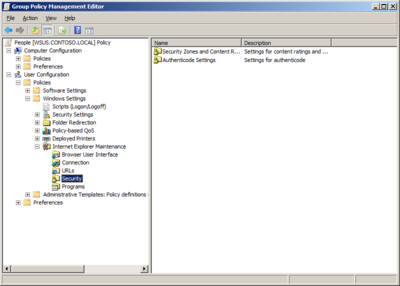
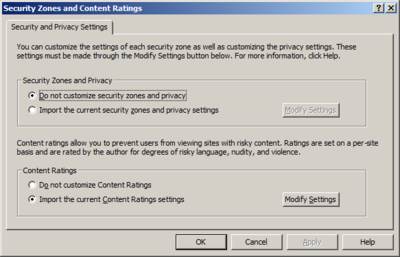
You will want to open the "Security Zones and Content Ratings" in the right panel. Select "Import the current Content Ratings settings" and click on "Modify Settings" as you can see in the following image:
Click on the "Approved Sites" tab
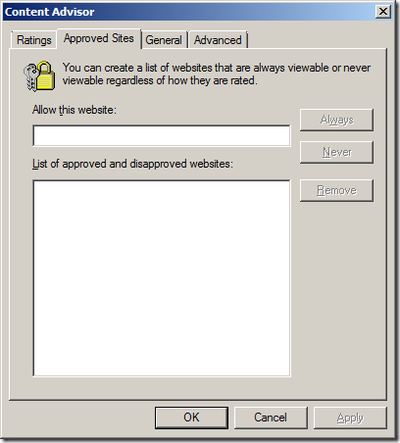
To block a site, type in the URL (Wildcards allowed) and click on "Never". In the image shown, we have blocked Google.
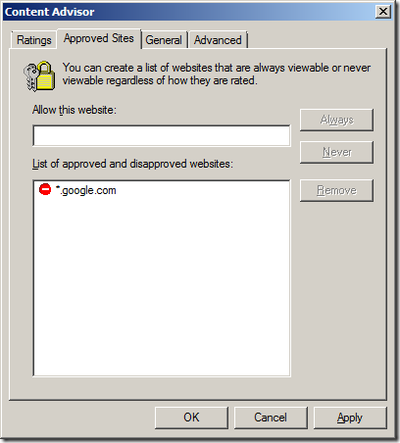
Please note, if you are trying to maintain a white list, you do the same steps except click "always" instead of "never" and we allow Google again. You will probably want to add the internal domain name of your companies AD to the Allow list of as well to ensure users can access the intranet web sites. Also note that while wildcards are supported in the URL’s, but adding just the URL “*” does not work.
Now, you need to create a supervisor password that is associated with the Allow/Never URL list. This password will also allow someone who possesses it to bypass a blocked page (think: administrators). It might be prudent to change it often, as it is a single password that applies to any and all users the Group Policy applies to.
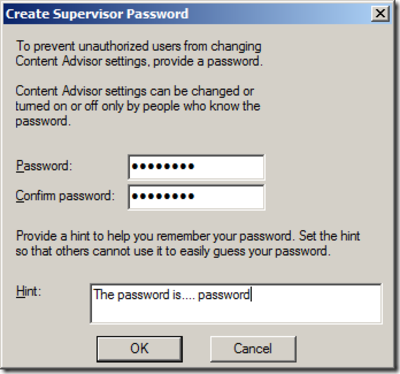
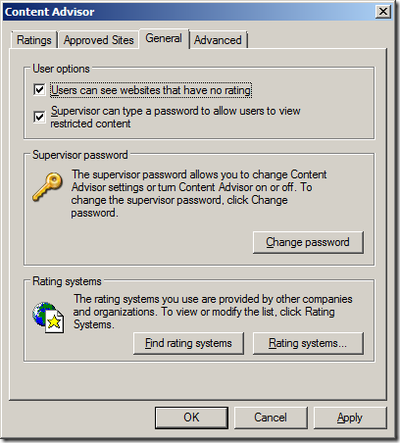
From the example above, the hint is a little silly. You might want to type a Hint that suggests contacting an administrator to get the password. One more major issue: By default when you enable the content advisor it will automatically block any web site that does not have a rating configured. We need to fix that. Tick “User can see websites that have no rating” then click “OK” as seen below:
It's that simple! Internet explorer will now block based on Group Policy settings, as you can see here:
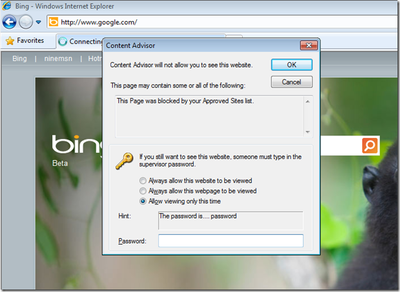
IMPORTANT!! This policy will only work for Internet Explorer. If they open Chrome, Firefox, Safari, or ANY other browser, they can bypass this Group Policy setting. The simple solution is to disable other browsers in group policy using the Applocker Group Policy settings, OR, don't use group policy at all - since Internet Explorer is not as popular as other browsers and you might upset employees by forcing them to use only Internet Explorer.
So what is the solution? Firewall blocking. Nothing can totally block access like a hardware firewall. For suggestions on popular firewall configurations, or to purchase a firewall, we recommend you have a free consultation with us to evaluate your needs.